What are API Keys?
API Keys are secure authentication tokens that allow external applications and services to connect with the OpenMethods platform. They enable programmatic access to trigger experiences, automate workflows, and integrate with other platforms.
Primary Use Case: OpenConnect Integration
API Keys enable the OpenConnect platform to trigger PopFlow experiences programmatically. This allows you to:
- Automatically launch customer journeys based on real-time events
- Create personalized experiences triggered by your CRM or marketing tools
- Execute multi-channel engagement flows via REST API
- Integrate the platform with your existing tech stack
Getting Started
Access the API Keys Dashboard
Navigate to Configuration → API Keys from the main menu to access the API Keys dashboard.
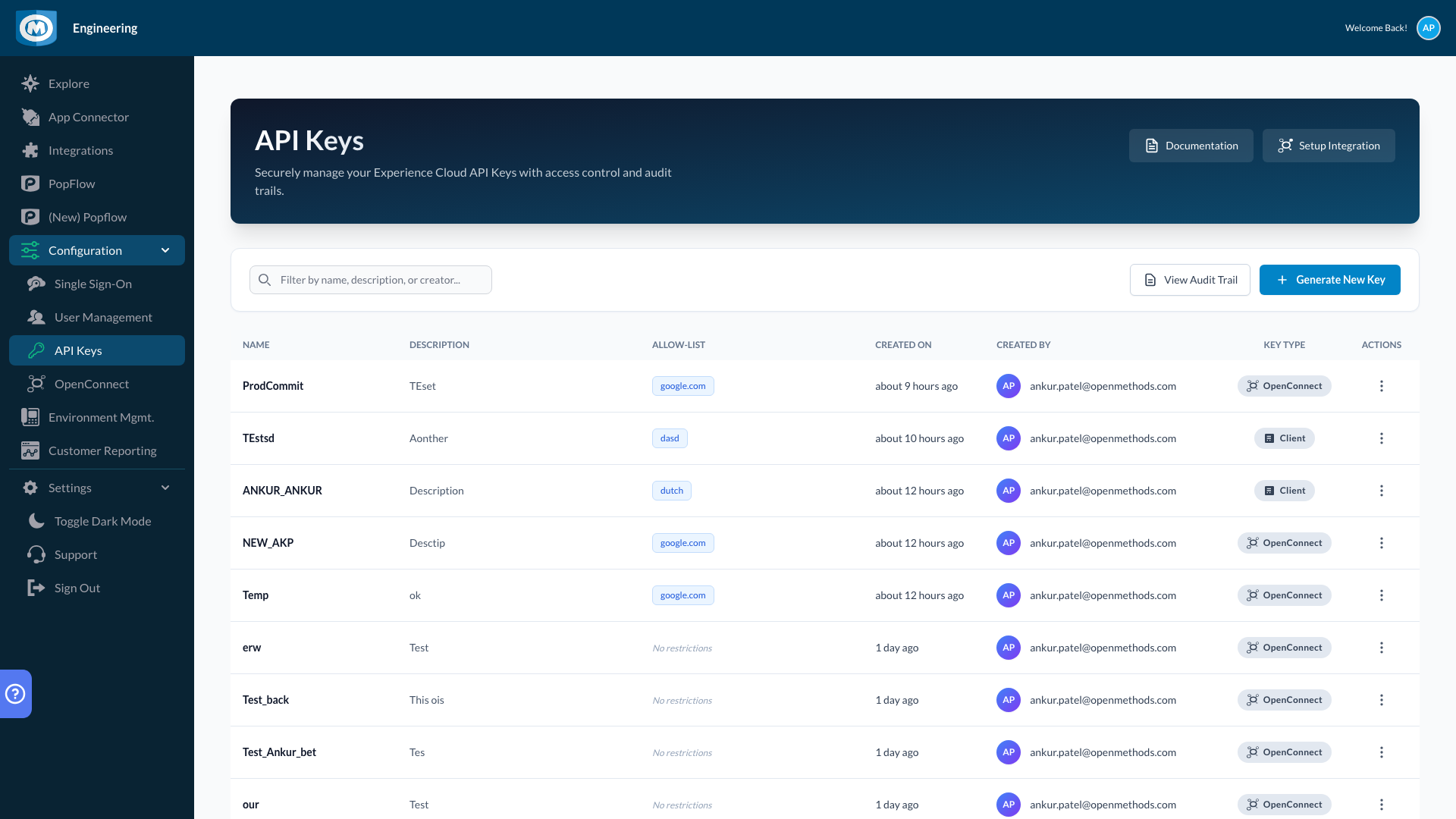
API Keys dashboard showing existing keys and management options
From the dashboard, you can view all your API keys, see their status, and access management features through the action buttons.
Creating a New API Key
Follow these steps to generate a new API key:
Click "Generate New Key"
Locate the "Generate New Key" button in the top-right area of the dashboard and click it to open the creation wizard.
Fill in Key Details
The creation form will appear. Complete the following fields:
- API Key Name (required) - A descriptive name like "OpenConnect Production"
- Description (optional) - Notes about the key's purpose or usage
- Key Type (required) - Select the appropriate access level for your integration
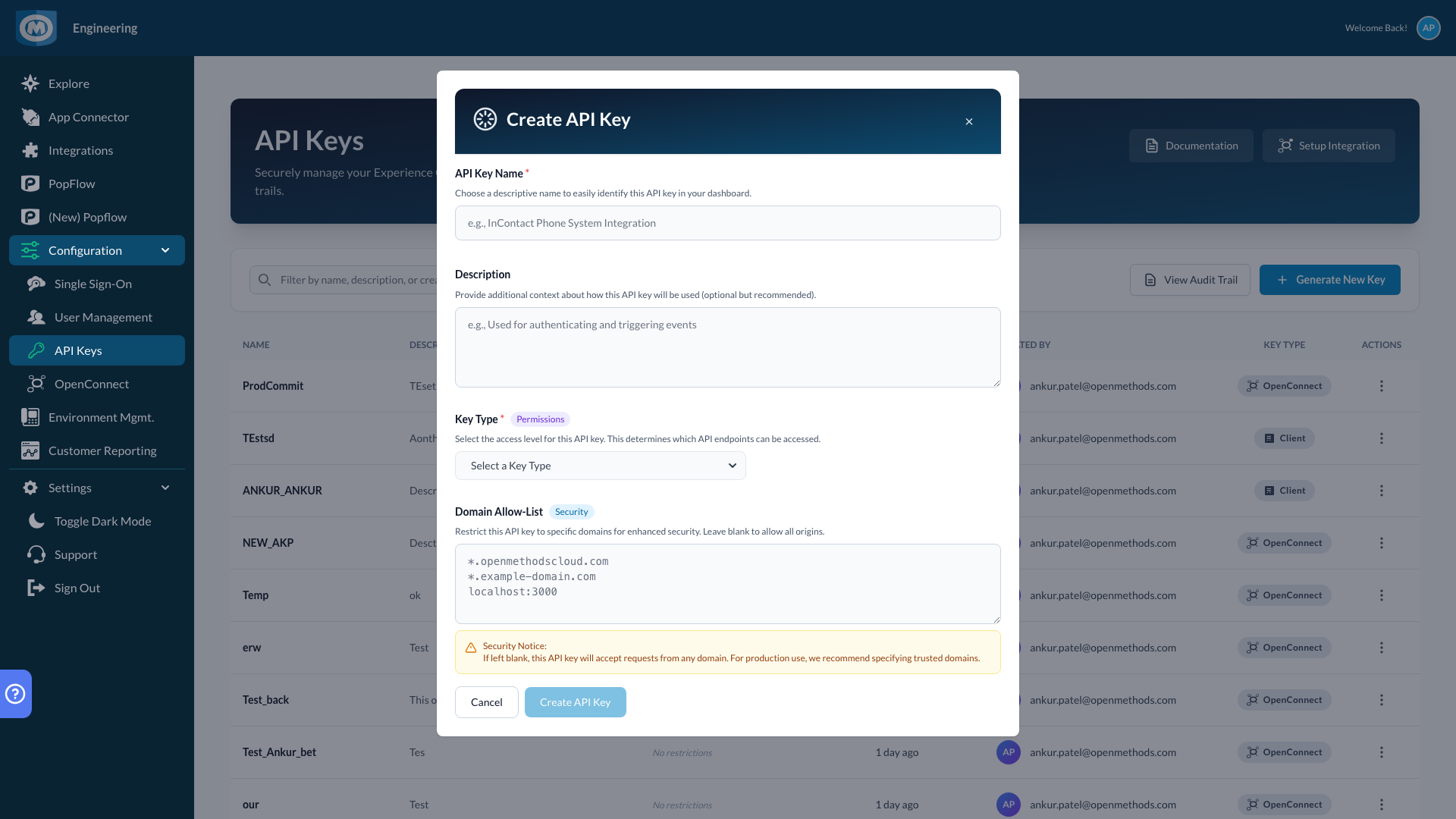
API Key creation wizard with required fields
Select Key Type
Click the "Select a Key Type" dropdown to choose the appropriate permission level for your needs.
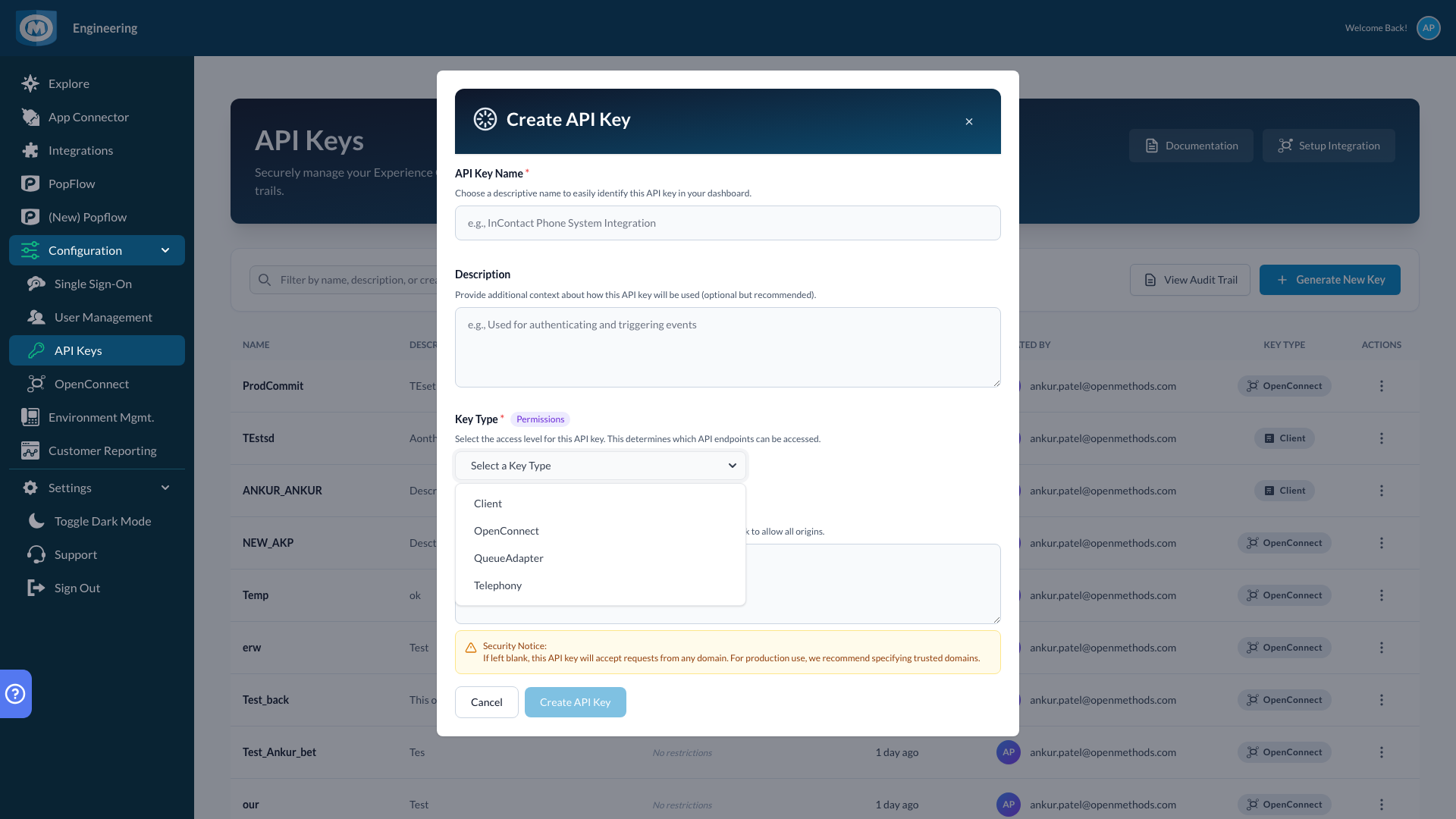
Selecting the appropriate key type and access level
Configure Security (Optional)
For enhanced security, configure the Domain Allow-List to restrict which domains can use this API key. This is recommended for production environments.
Create the Key
Review your settings and click "Create API Key" to generate your new key.
Securing Your API Key
Success screen displaying your new API key (shown only once)
Best Practices for API Key Security
- Copy the API key immediately and store it in a secure password manager or secrets vault
- Never share API keys via email, chat, or commit them to version control (Git)
- Use environment variables when deploying applications that use API keys
- Configure Domain Allow-Lists to restrict where the key can be used
- Regularly review and rotate keys, especially if team members leave
- Revoke any keys that may have been compromised immediately
Using Your API Key with OpenConnect
Integration Setup
Once you have your API key, you can integrate it with OpenConnect to trigger PopFlow experiences:
Access OpenConnect Settings
Click the "Setup Integration" button from the API Keys dashboard, or navigate directly to OpenConnect configuration.
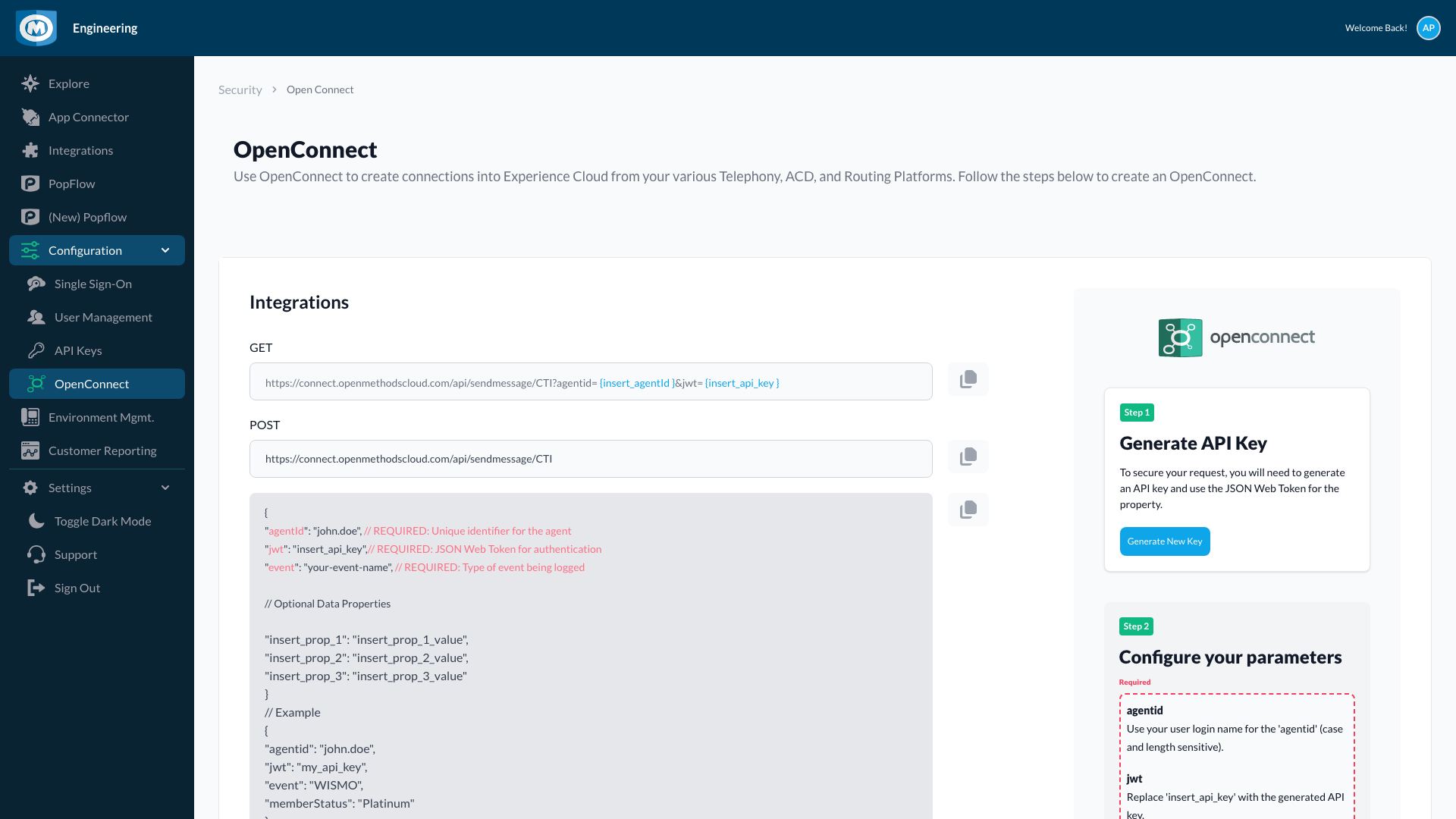
OpenConnect integration setup interface
Configure the Connection
Add your API key to the OpenConnect connection settings. This establishes secure authentication between OpenConnect and the platform.
Test the Connection
Use OpenConnect's test feature to verify the API key is working correctly before deploying to production.
Trigger Experiences
OpenConnect can now trigger PopFlow experiences programmatically using REST API calls with your authenticated API key.
Managing Your API Keys
View All Keys
The API Keys dashboard displays all your keys in a table format showing key name, description, allowed domains, creation date, creator, and key type.
Viewing Activity
Click "View Audit Trail" to see a complete history of all API key operations including creation, modifications, and usage events.
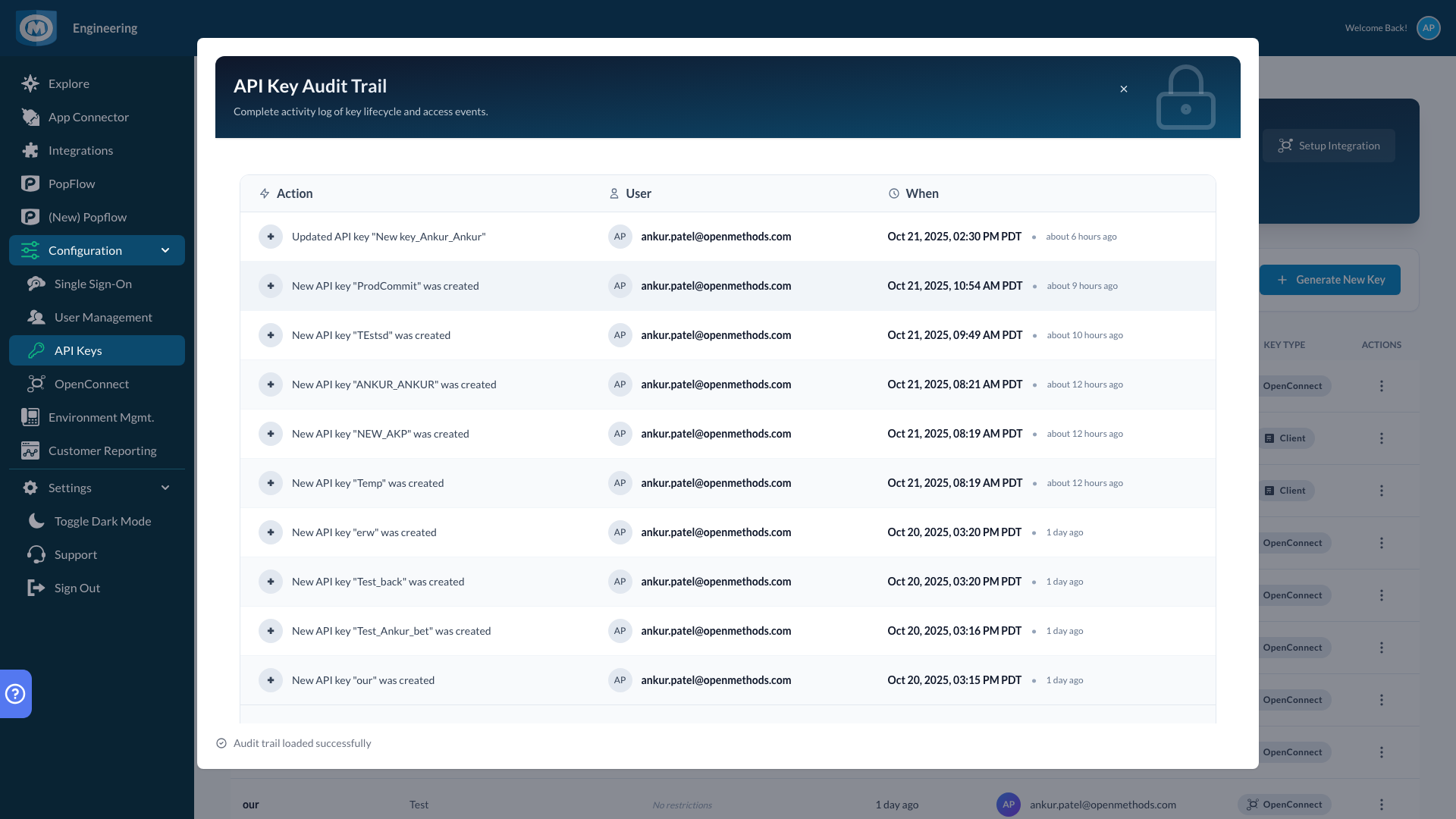
Comprehensive audit trail showing all API key activity
Editing a Key
You can update the following properties of an existing API key:
- Name - Update to reflect current usage
- Description - Add or modify notes about the key's purpose
- Domain Allow-List - Add or remove allowed domains
Revoking a Key
If you need to disable an API key (for security reasons, or if it's no longer needed), you can revoke it from the actions menu. Revoked keys immediately stop working and cannot be reactivated.
Common Use Cases
1. OpenConnect Integration for Customer Journeys
The most common use case: Create an API key for OpenConnect to trigger PopFlow experiences based on customer behavior, CRM events, or marketing automation triggers.
2. Third-Party Application Access
Grant controlled access to external applications that need to interact with platform APIs without sharing user credentials.
3. Automated Testing
Generate dedicated API keys for automated testing environments to validate integrations without affecting production keys.
4. Partner Integrations
Provide API keys to trusted partners for specific integration projects, with appropriate access controls and domain restrictions.
Troubleshooting
API Key Not Working
- Verify the key hasn't been revoked in the dashboard
- Check that your request is coming from an allowed domain (if Domain Allow-List is configured)
- Ensure you're using the correct key type for your operation
- Verify the API key is being sent correctly in the Authorization header
Lost API Key
If you've lost your API key, you cannot recover it. You must:
- Generate a new API key with the same settings
- Update all applications and services to use the new key
- Test the new key in all integrations
- Revoke the old key once migration is complete