Overview
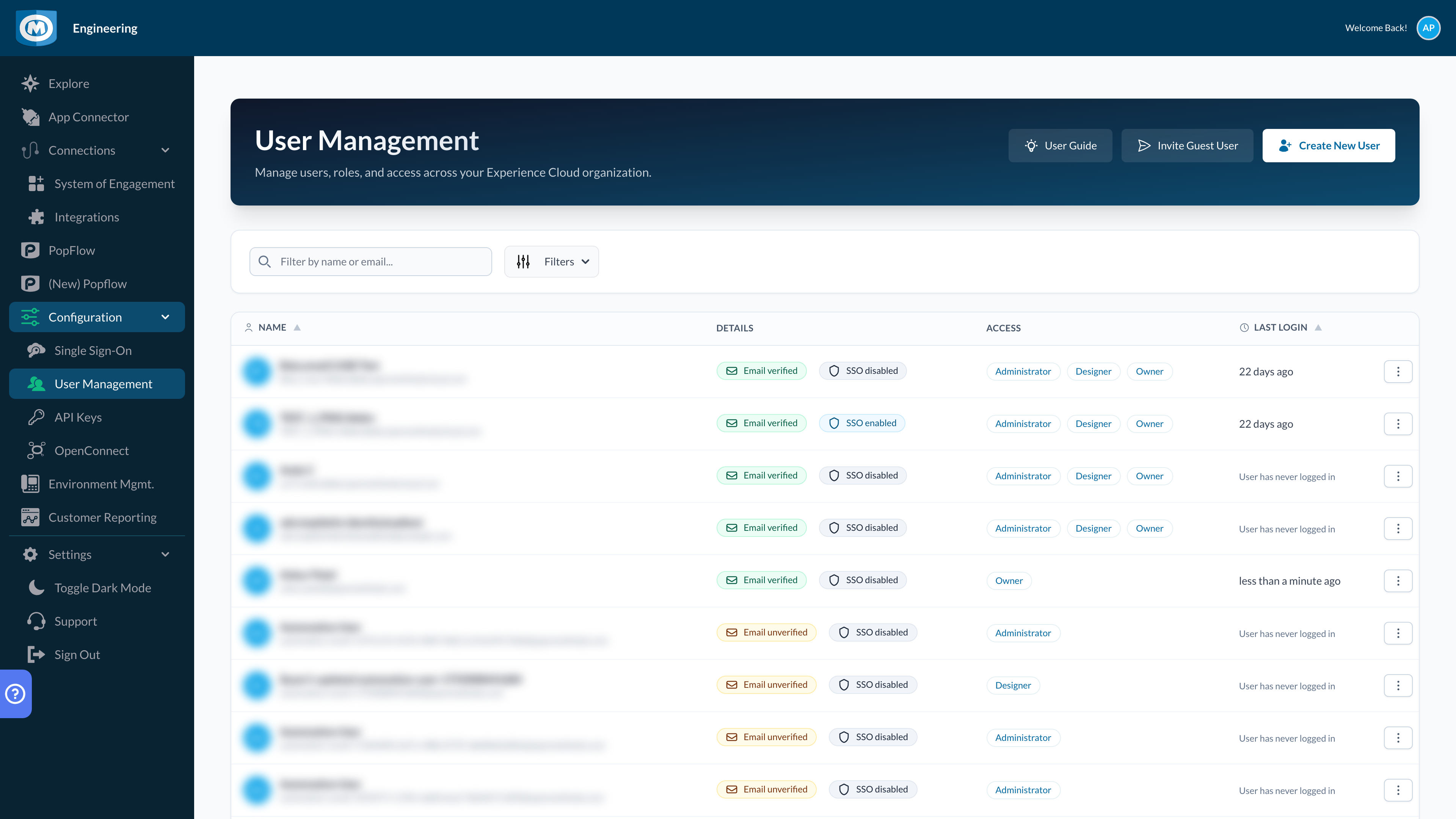
The User Management screen lets you view and manage users within your organization. You can:
- Search users by name or email
- Filter by roles (and optionally include locked users)
- Invite guest users (for origin customers)
- Create new users (wizard)
- Manage an existing user (profile + roles + sign-in options)
- Re-send confirmation emails for unverified accounts
- Revoke guest access when a partner no longer needs entry
Quickstart
Invite a guest user
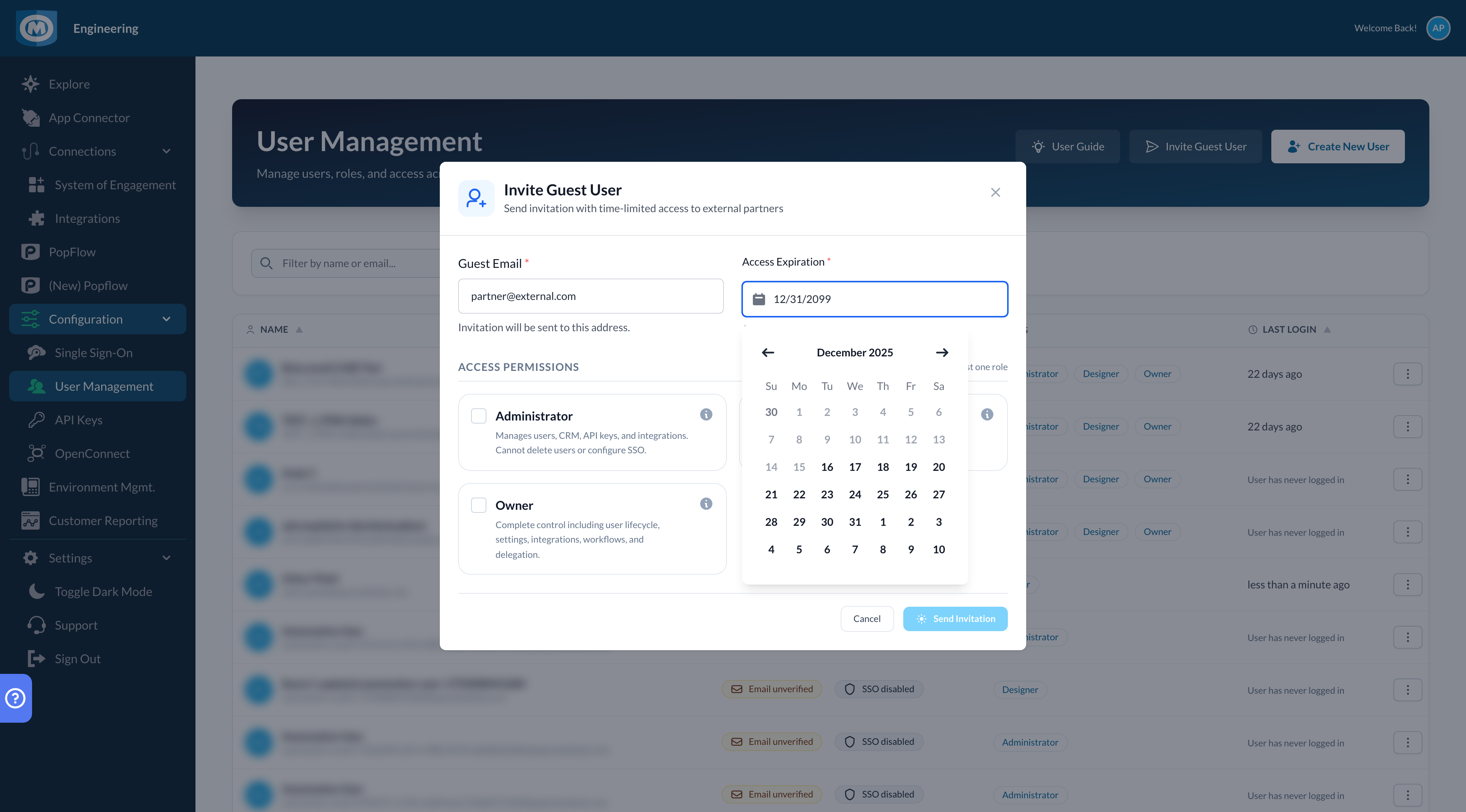
Click Invite Guest User, enter the guest’s email, set an expiration date, choose roles, then send the invite.
Create a new user
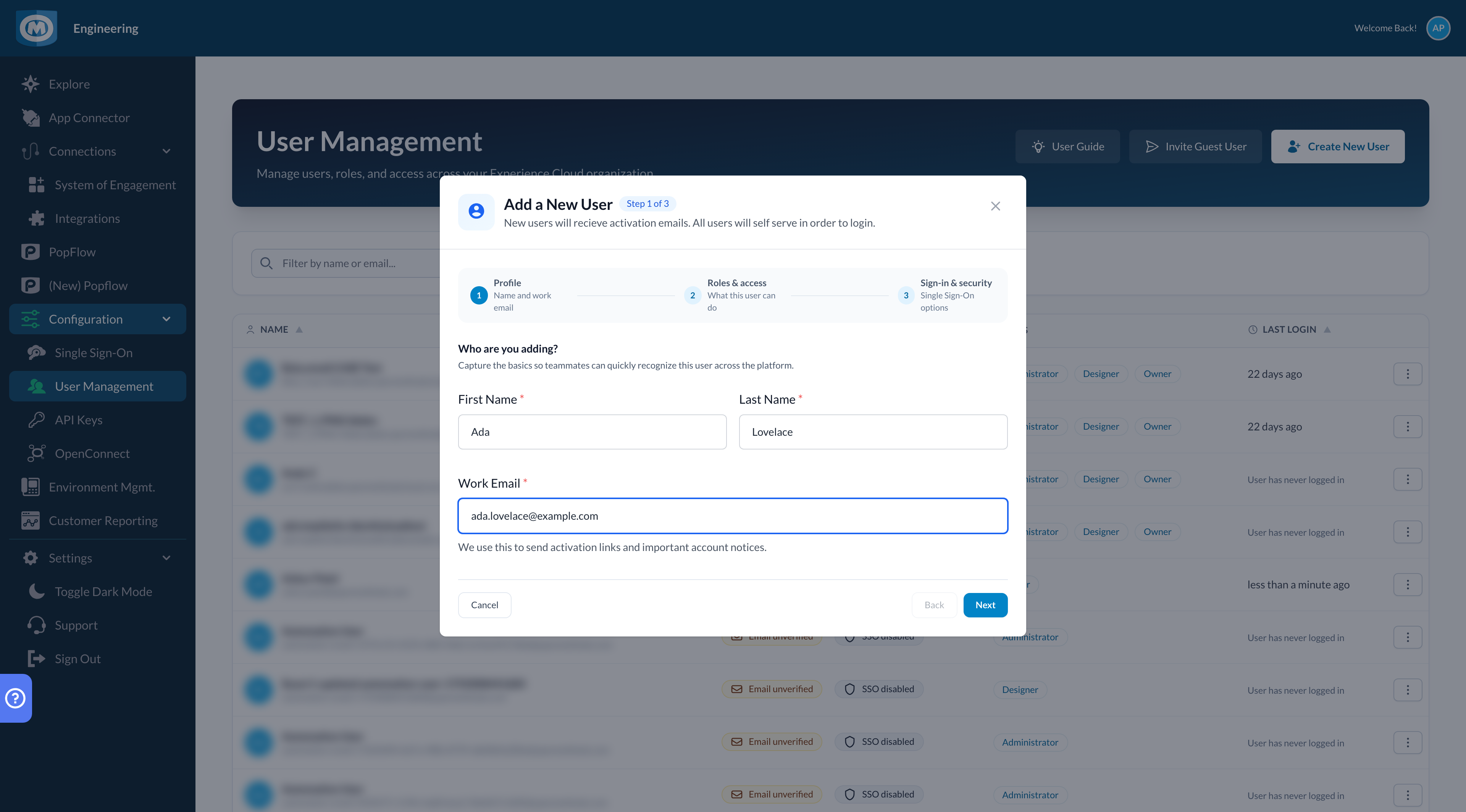
Click Create New User and complete the wizard: user details → roles → optional SSO access.
Manage an existing user
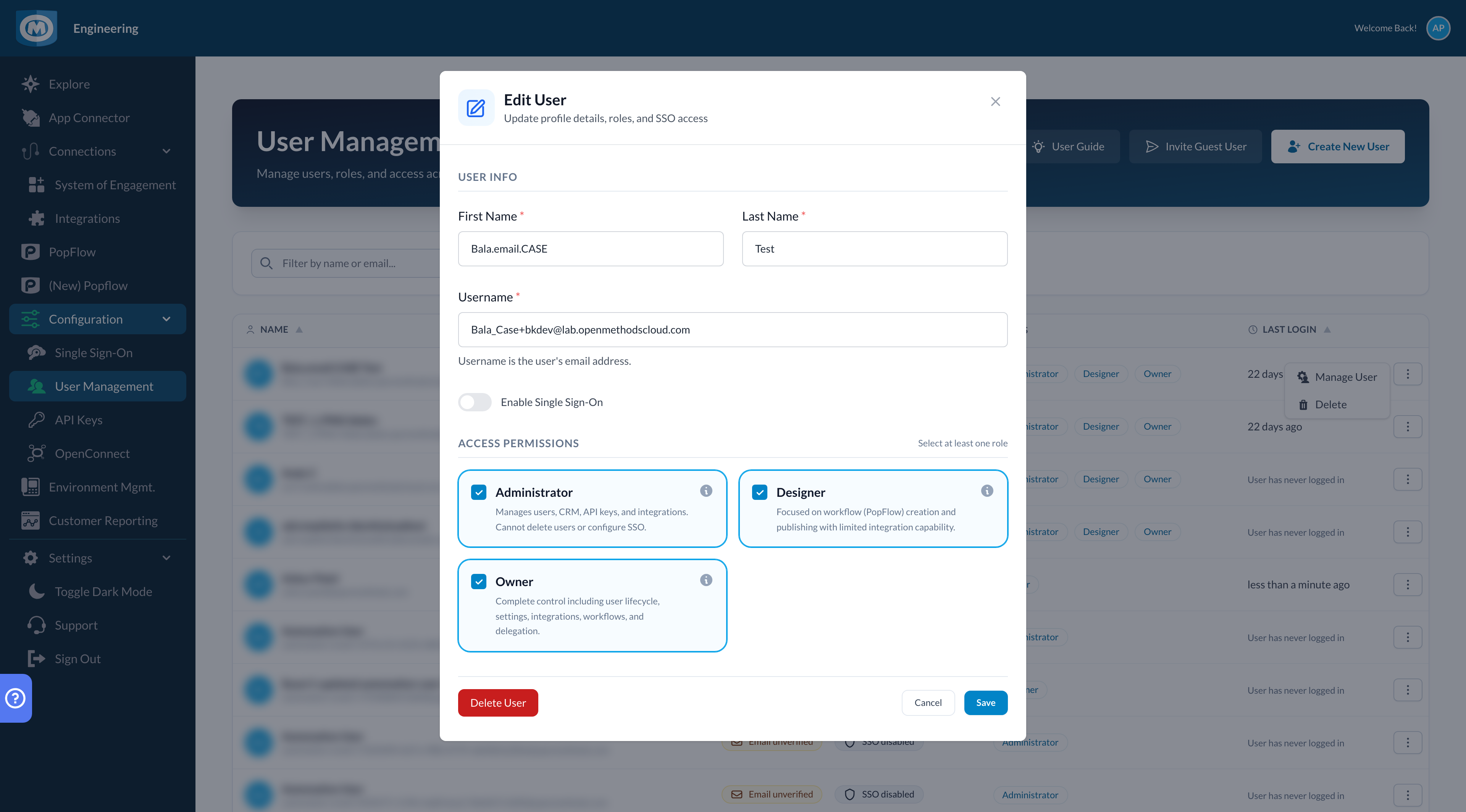
Use the row menu to select Manage User (or Manage Guest for guests). Update profile details and roles based on your permissions.
Enable SSO for a user
SSO can be enabled per-user when your customer has an Enterprise license and at least one enabled SSO provider configured.
Re-send a confirmation email
If a user shows Email unverified, open the row menu and select Re-send Confirmation.
Revoke guest access
Guest users can’t be permanently deleted. Use the row menu and choose Revoke Access to remove access when a guest no longer needs it.
Search & Filters
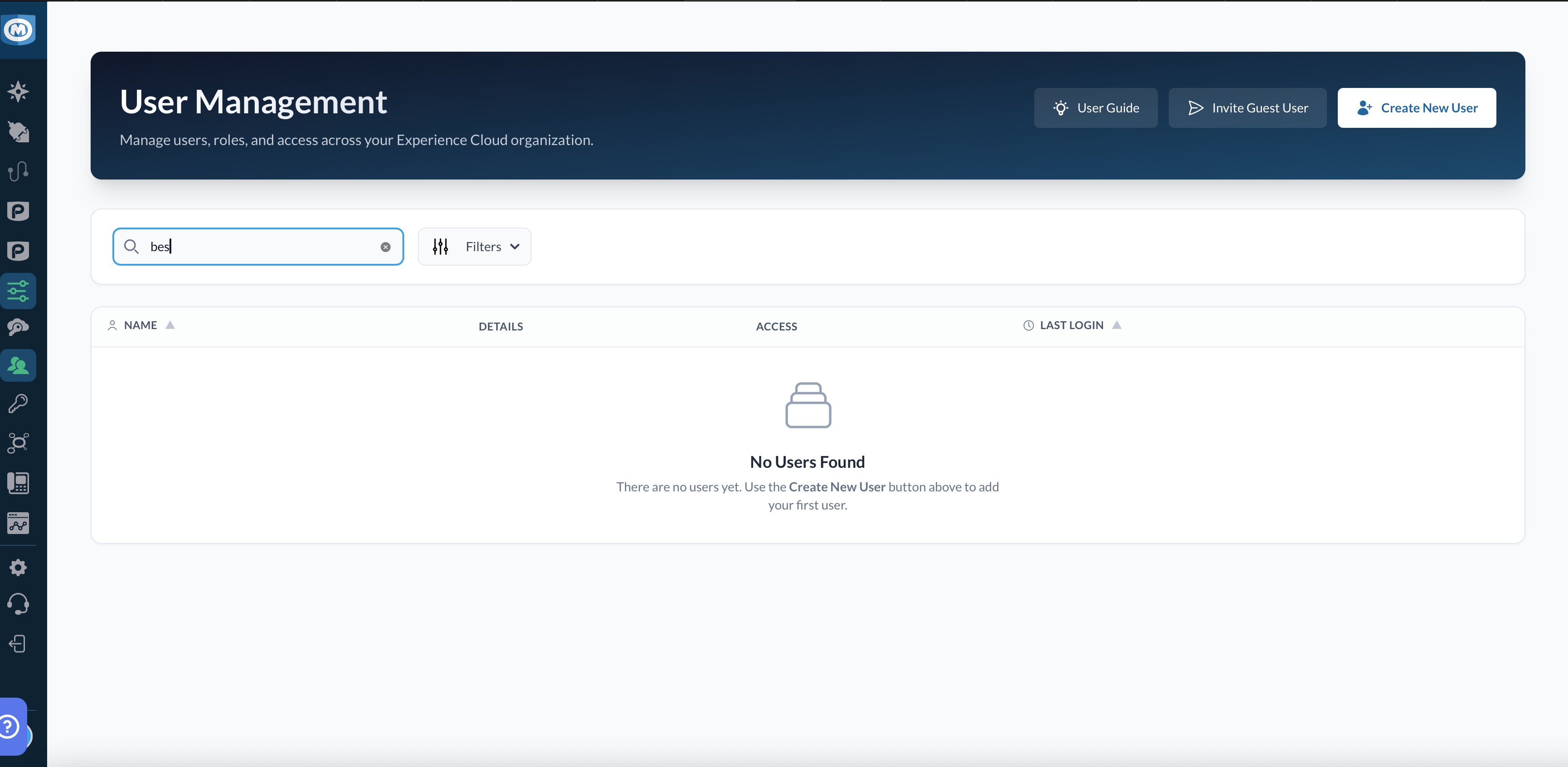
Use the search bar to filter users by name or email. Use the Filters dropdown to narrow results by role. Selecting “Locked Users” includes locked-out accounts in the results.
- Search: updates as you type
- Role filters: select one or more roles
- Locked Users: include accounts that are locked out (for example, users who can’t sign in)
Sorting
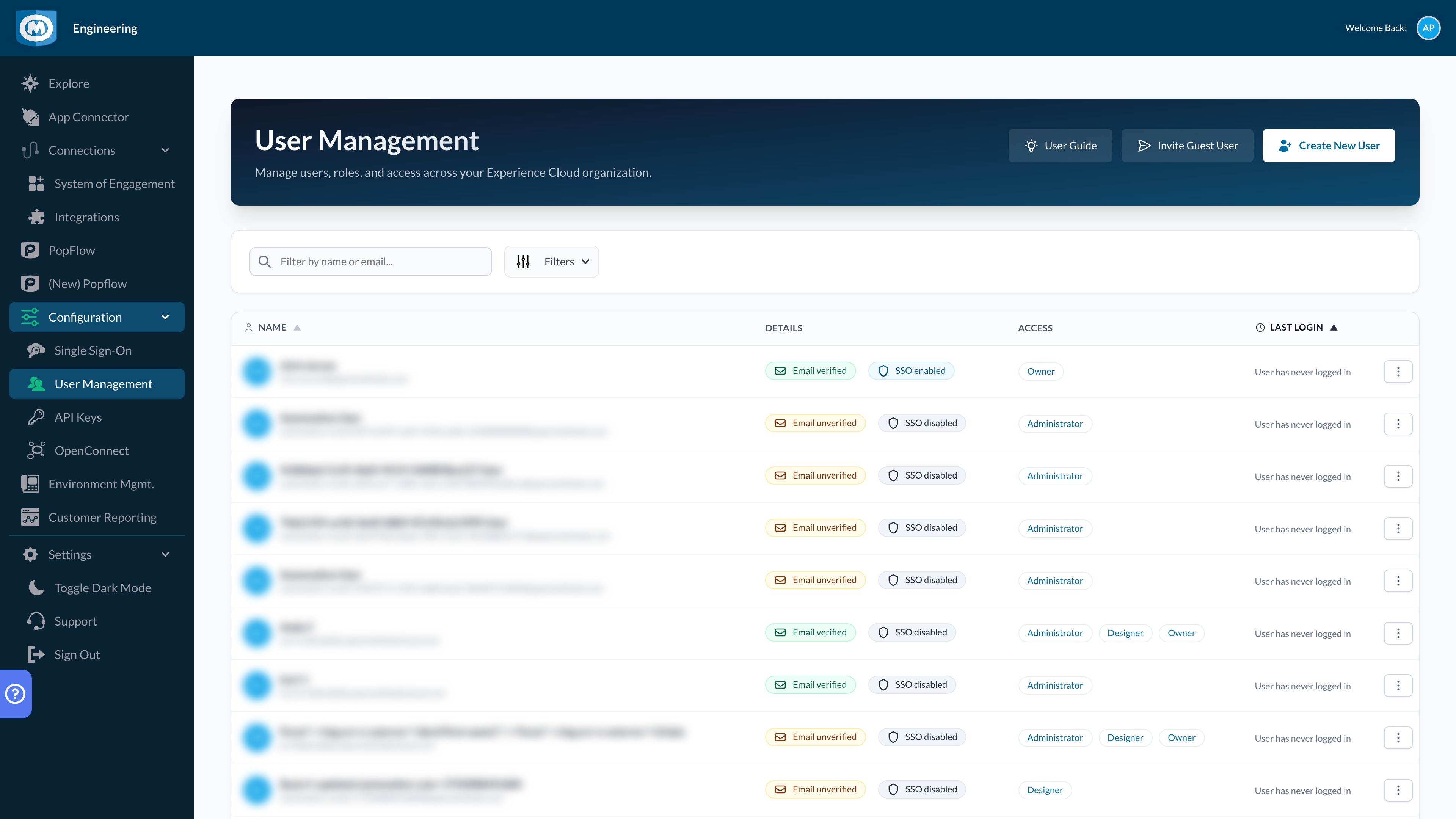
Click a sortable column header (like Name or Last Login) to toggle the sort direction.
- First click: sorts the column
- Subsequent clicks: toggles ascending / descending
Roles & Access
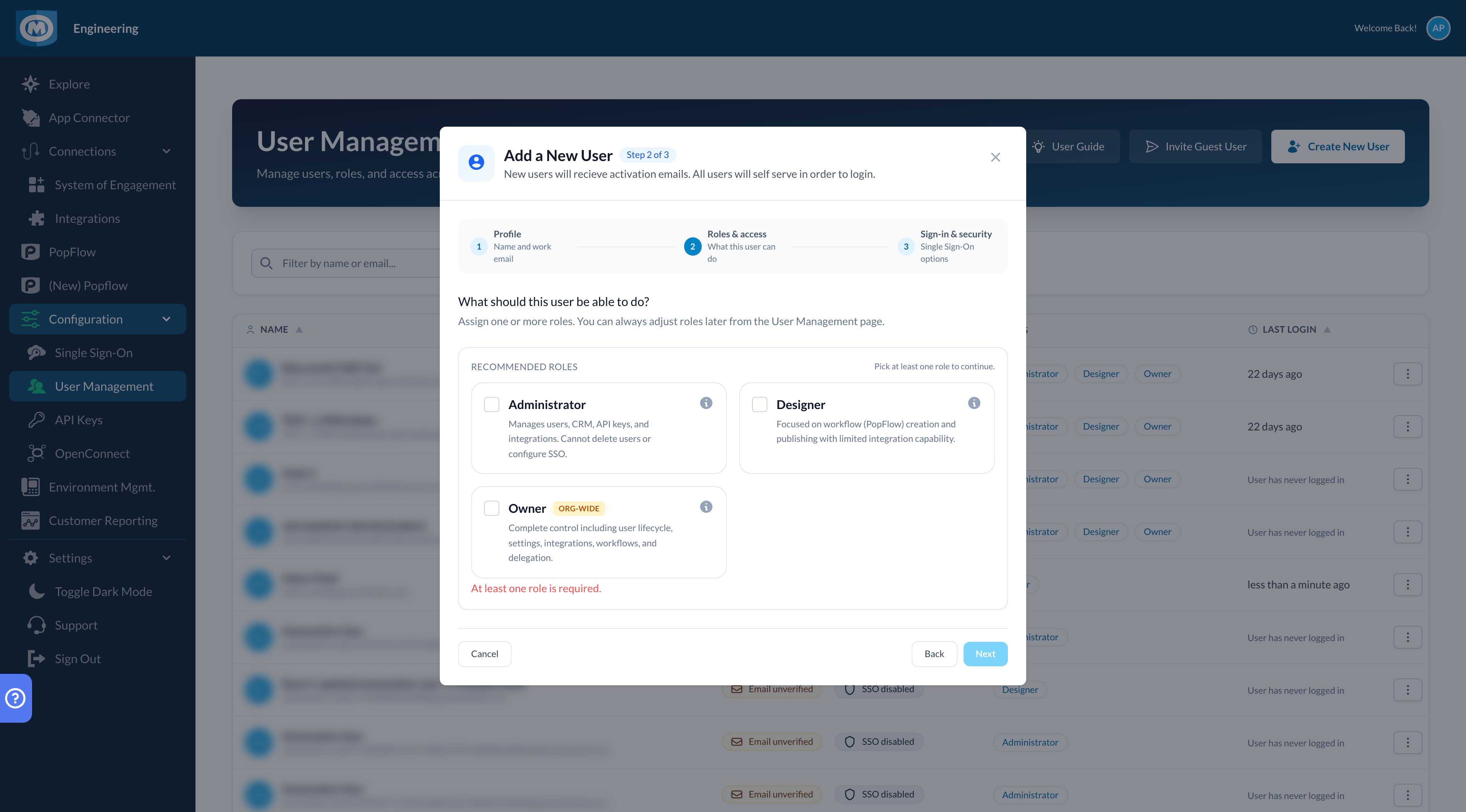
Each user can have one or more roles. Roles determine what areas of the app a user can access and what actions they can perform.
What roles mean (common)
Your organization may have additional roles, but these are common patterns you’ll see in the role chooser. If you’re unsure what a role allows, hover the info icon in the role card to see the full description.
- Owner: Org-wide control, including user lifecycle, system settings, integrations, workflows, and delegation. Not recommended for guest users.
- Administrator: Manages users (create/invite), CRM, API keys, and integrations, but cannot delete users, configure SSO, or assign the Owner role.
- Designer: Focused on workflow (PopFlow) creation and publishing, with limited integration capability and no system/user-management rights.
Guest users
Guest users are visually labeled in the grid. A guest is a user whose origin customer is different from the current organization you’re viewing.
Editing roles
Open Manage User (or Manage Guest) to modify roles. Roles are selected using the same UX as the Invite flow to keep the experience consistent.
Single Sign-On (SSO)
When your organization has at least one enabled SSO provider configured, User Management shows per-user SSO status in the Details column. Enabling SSO for a user requires:
- Enterprise license
- At least one enabled SSO provider configured in the SSO screen

Accepting an Invitation
If an Owner/Administrator creates your user or invites you to an organization, you’ll receive an email with an activation step. The exact formatting can vary by environment, but the workflow is the same.
Example email (format may vary)
Subject: You've been invited to OpenMethods

Hello,

You have been invited to join <Organization Name> in OpenMethods.

To activate your account, confirm your email address:
<https://www.openmethodscloud.com/confirm-email?id=<user-id>&code=<confirmation-code>>

If you are asked to set a password (or received a password reset link), use:
<https://www.openmethodscloud.com/reset-password?code=<verification-code>&email=<your-email>>

If you have questions, contact your organization administrator.
What to do
- Open the email and click the activation link (often labeled “Confirm Email” or “Activate Account”).
- After confirmation, you should see: Email has been confirmed! You can now log in!
- If you need to set a password, follow the reset link (or use Forgot Password from the login screen). The Reset Password screen may pre-fill a verification code and ask you to create a new password.
- Sign in to the platform. If your organization uses SSO and SSO is enabled for your account, use the SSO sign-in option.
If you can’t activate or sign in
- Didn’t receive the email: check spam/quarantine and confirm the admin invited the correct email address.
- Activation link/code expired: ask an Owner/Administrator to open User Management and use Re-send Confirmation for your user.
- Password problems: use Forgot Password to request a new reset email.
Common Workflows
Invite Guest User
Use Invite Guest User to invite a user from another origin customer (guest access). This action is available only for origin customers and requires the appropriate permission.
Create New User Wizard
The Create User wizard guides you through entering user details and selecting roles, with optional SSO enablement when available.
Edit User Modal
Use the row menu on a user to open Manage User. This opens a modal where you can update profile details, roles, and (when allowed) SSO access.
Re-send Confirmation Email
If a user hasn’t confirmed their email address, the Details column shows Email unverified. Open the row menu and select Re-send Confirmation to send the activation link again.
Troubleshooting
I don’t see Invite / Create buttons
Those actions are permission-gated and also depend on whether the current organization is an origin customer.
I can’t Manage / Delete a user
The row menu options depend on your permissions and on whether the user is a standard user or a guest. For example, guests typically show Revoke Access instead of Delete.
SSO toggle is disabled
SSO requires an Enterprise license and at least one enabled SSO provider. Configure providers in Security → Single Sign-On.
Last Login shows “User has never logged in”
If the user has never authenticated, the system will display a friendly message instead of a date.
I tried to invite a user but it failed
Guest users cannot invite other users. If you’re signed in as a guest, ask an Owner/Administrator from the origin customer to send the invite.